How to file the Compliance Audit Report (ACR) on the SEBI IARA portal
A step-by-step walkthrough for SEBI Research Analysts to file the Annual Compliance Audit Report — called the Audit Compliance Report (ACR) on the portal — through your IARA / RAASB login. The navigation screenshots are deliberately blurred; only the button you click is kept in focus.
Keep these ready before you log in:
- Your Principal Officer & Compliance Officer details — name, mobile, email (where applicable).
- Your total number of clients as on 31 March 2026.
- The compliance status for each regulation, with a reason for anything not complied / not applicable.
- The auditor's Annual Compliance Report on letterhead, signed & dated — and the date of the audit report.
- The Annexure to the ACR Report (mandatory) and, if it applies to you, the client-level segregation file.
Heads-up: the ACR filing module wasn't open earlier this year — RAASB opened it on the portal around 22 September 2026, so filing could only begin after that.
Log in and open “Post Enlistment / Annual Compliance Reporting”
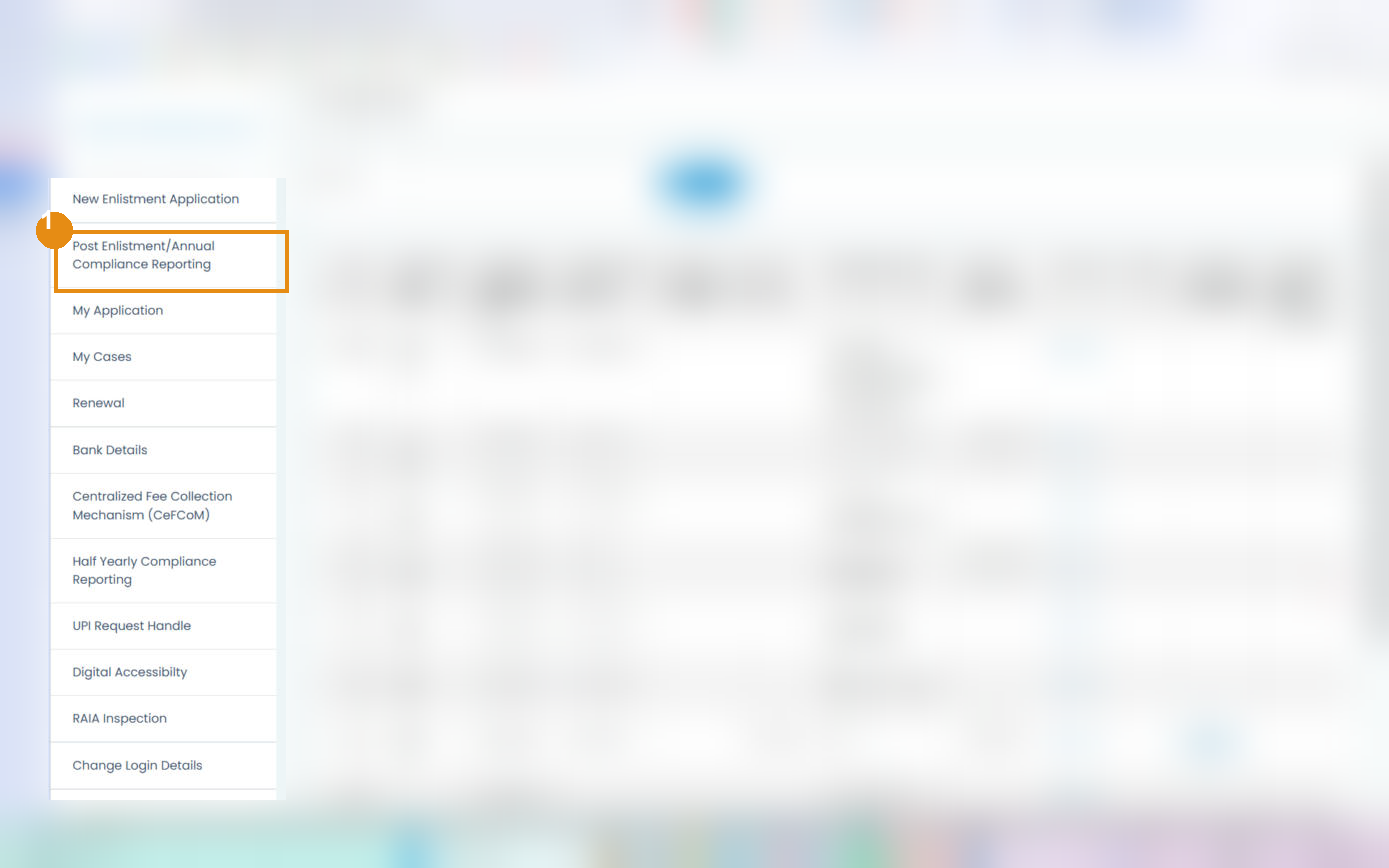
Log in to the IARA portal. From the My Applications screen, click “Post Enlistment / Annual Compliance Reporting” in the left menu.
Open the side menu on the Member Dashboard
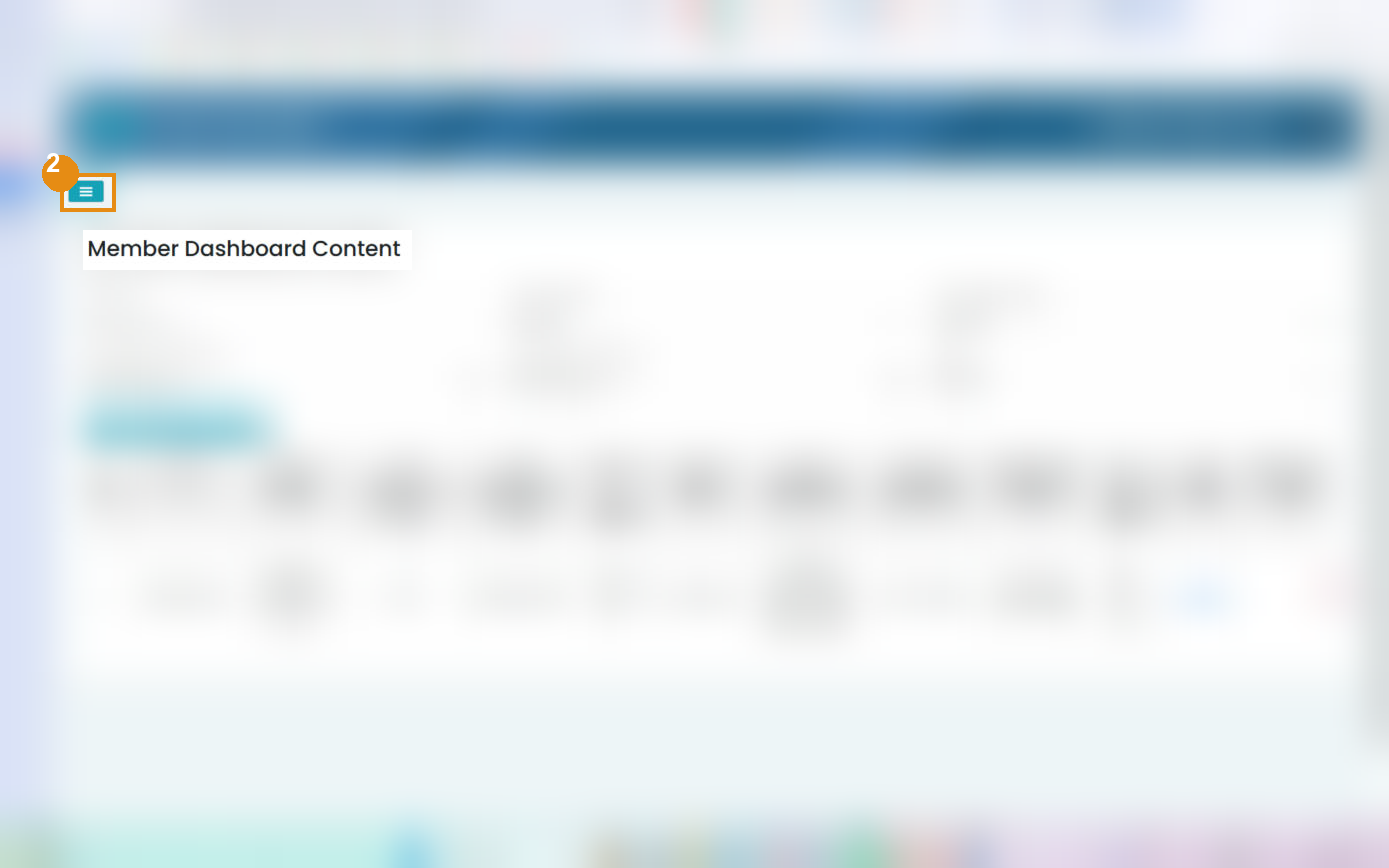
On the Member Dashboard, click the menu (☰) button at the top-left to open the side panel.
Open “Annual Compliance reporting”
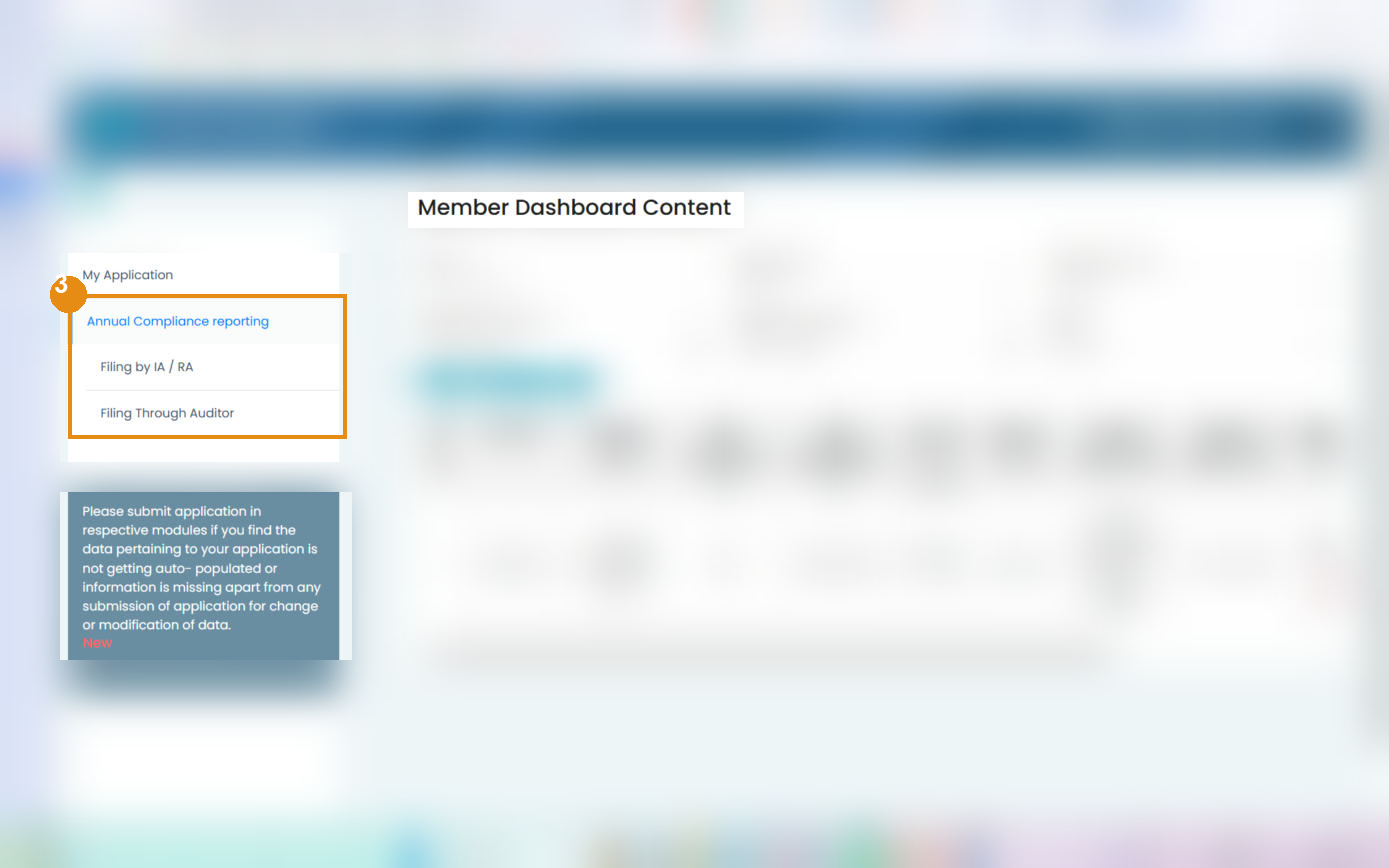
In the side panel, click “Annual Compliance reporting”.
Choose “Filing by IA / RA” → “Audit Compliance Report (ACR)”
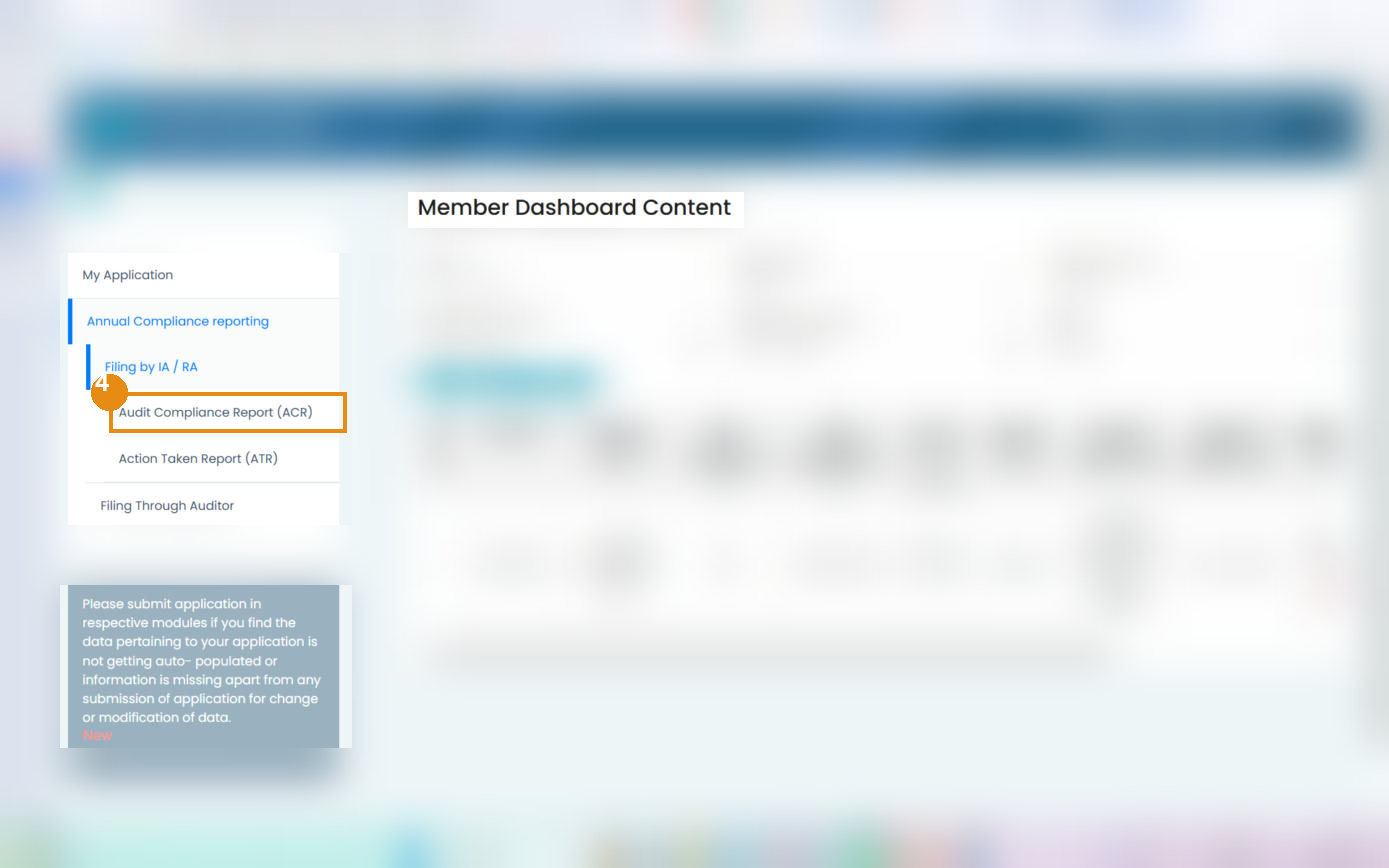
Under “Filing by IA / RA”, click “Audit Compliance Report (ACR)” — this is the annual compliance audit report.
- Filing by IA / RA — you (the RA) file the report yourself.
- Filing Through Auditor — your CA / CS / CMA files it through their own access.
- Action Taken Report (ATR) — a separate option to report the action taken on any adverse findings in the audit.
Pick the financial year and start a submission
After you click Audit Compliance Report (ACR), set the financial-year dropdown to 2025-2026 (the year you're filing for), then click “Add ACR Submission” to open the form. Double-check the year — filing against the wrong period is hard to undo.
Check your pre-filled details and add your officers
Your BSE Enlistment No., name, SEBI registration number, entity type and financial year fill in automatically — verify them. Then indicate whether you have a Principal Officer and a Compliance Officer (Yes/No); if yes, enter each one's name, mobile and email.
Enter your client count and mark each point
Enter your total number of clients as on 31 March 2026. Then work through the list of regulations and, for each one, select a compliance status — wherever a point is not complied with or not applicable, add a short reason. Keep every status consistent with your auditor's report.
Upload the documents and submit
- Upload the auditor's Annual Compliance Report on letterhead and enter the date of the audit report.
- Upload the Annexure to the ACR Report (mandatory), and the client-level segregation file if it applies to you.
- Tick the confirmation that the documents are duly signed, then Submit. The portal won't accept the form until every required annexure field is filled.
- Note the acknowledgement / case ID — the status moves to “Submitted to Exchange”.
(We don't show these form screens, as they carry your personal and registration data.)
File the Action Taken Report (ATR) — only if needed
If you marked any point as “not complied”, file an Action Taken Report: go back to Filing by IA / RA → Action Taken Report (ATR) and record the corrective action taken against each such point. No non-compliance in your ACR? No ATR is needed.
Finally, publish the compliance-audit status on your website, publish any adverse findings with the action taken, and provide the report to your clients.
What to publish on your website — ready-to-use proforma
SEBI requires you to publish the status of the compliance audit on your website. Copy the block below to your site and fill in the blanks:
| Sr. No | Financial Year | Audit Type | Compliance Audit Status | Remarks, if any |
|---|---|---|---|---|
| 1 | 2025-26 | Annual Compliance Audit | Completed | None |
Add a new row each financial year. If there are adverse findings: put a brief note in “Remarks” with the action taken, and also publish/submit the Action Taken Report (ATR).
More for SEBI Research Analysts
Audit deadline & penalties
When it's due and what late filing costs.
Read →Post-Reg Compliance
What to maintain after registration.
Open guide →Ask RA Mitra
Free AI answers on RA compliance.
Ask now →Join our Telegram
Free live SEBI & BSE alerts.
Join now →RA Sahayak is free & ad-free. A small UPI tip keeps it maintained. 😊
Disclaimer
This is a plain-English, unofficial walkthrough to help you find your way around the portal. Screens and steps on the SEBI IARA / RAASB portal may change without notice. All screenshots are illustrative and have personal data blurred.
This is not legal, compliance, tax or investment advice. Always follow the current on-screen instructions on iaraportal.sebi.gov.in and verify requirements on sebi.gov.in / bseindia.com, or consult a qualified professional. RA Sahayak is a free, non-commercial resource and is not affiliated with SEBI, BSE, or any regulator.